
Licensing Help (Versions 2.x)
Commencing Nov 2020. For versions 2.x the licenses will come directly from Tridium Servers. This means you will not have to use our licensing portal to create licenses, but you will still be able to download your modules as needed. The WLicensing Service can also be removed from your station. We will transfer your current host Id's to Tridium. If we have missed any, and the license is on our current system, please email the host id(s) to Support so we can add your host ID to Niagara Central. You might receive emails from Tridium with invoices. The invoices do not need to be paid and can be ignored. Steps:
1. Download version 2.x of your module from the WSE Software Portal when they become available in mid Oct 2020.
2. Copy to modules directory.
3. Restart station and Workbench.
4. Get the latest Tridium License from the Tridium License Manager in your platform. (Workbench and Station should be restarted after getting an updated license)

5. Remove the WLicensingService from your station config. Note: if you're using our dashboards, see View Builder Help.
Licensing Help (Versions 1.x)
NOTE: THIS IS ONLY FOR CUSTOMERS PRIOR TO NOV 2020
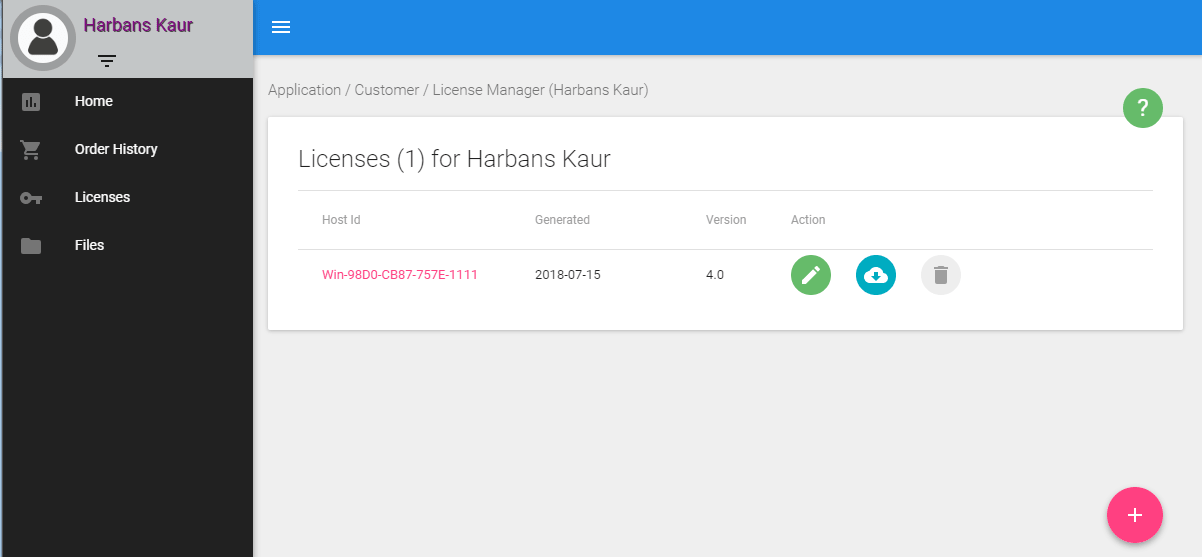
1. Create a License:
Create a license on the License And File Manager:
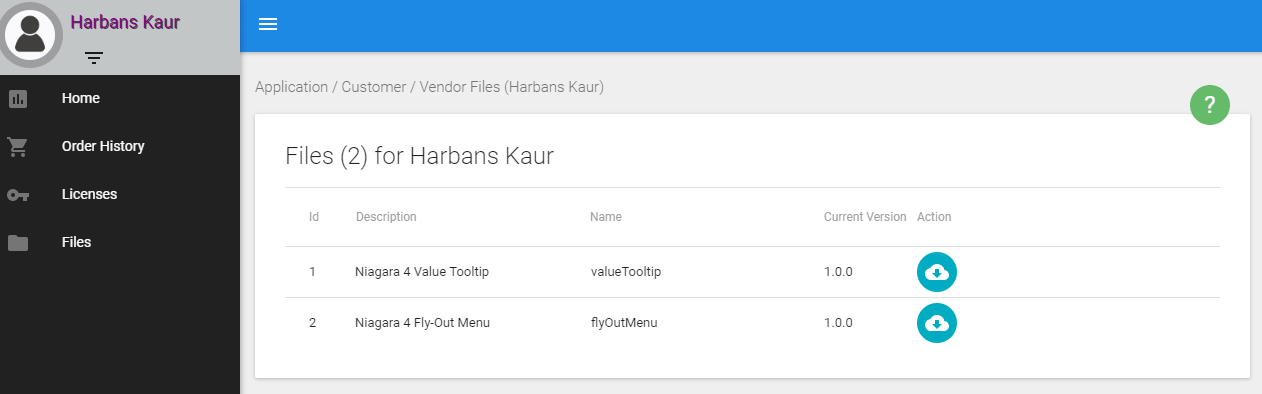
2. Get Module Files:
When you have created at least 1 license; files will automatically appear in the files section. Download and copy the files and save them to your systems modules directory. Restart station and Workbench.
3. Add Licensing Service:
In Workbench, open the wLicensingModule from the palette, and drag the service to your station config section.
This module automatically retrieves the license from our servers and saves it to your stations
shared folder directory. Internet connection required. Alternatively, go to step 4 to manually save the licensing file.

4. Manually Saving the License File:
From the licensing portal download the licensing.xml file.
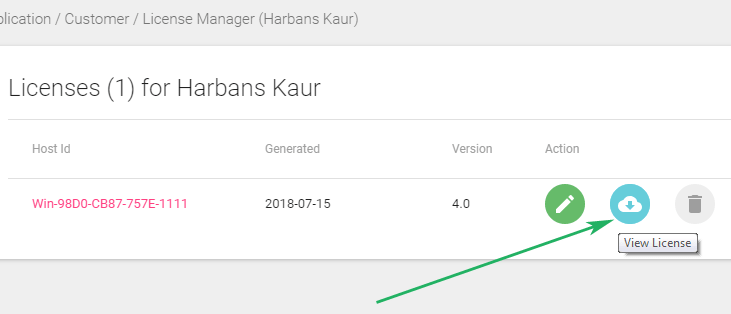
Save it to the directory below. Create the directory if it doesn't exist. NOTE: this is the shared directory for the user home. This location might be different for you depending on what you selected to be the user home during Workbench installation.
If you're on a JACE, use the file transfer client to copy the license file to the target machine.
NOTE: if you placed an order on two separate occasions, its it recommended to recreate the license on our portal again so all the latest features are added to the license file.
Verify all the features you have purchased are in the license.xml file.
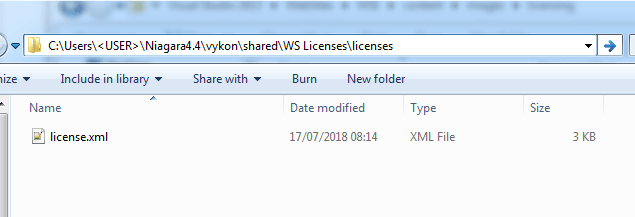
You can find your user home by going into the Platform Administration:

Additional Information:
If you're getting a license error on screen, check the category permissions in your station. Here are the minimum requirements for a non-admin user:

Why does my license have an expiration date?
This is nothing to worry about. The expiration is only there in the event our license api gets updated. You will have to recreate licenses on our portal before the expiration date. Licenses are lifetime.